MailOrder MailOrder MailOrder MailOrder
  • Home
  • Features
  • Pricing
  • FAQ
  • Contact
Free Trial

Knowledge Base

MailOrder

Popular Search segmentordercampaignmedia

Getting Started

  • Overview
  • First setup

Product Management

  • Product families
  • Pricing profiles
  • Products
  • Packages
  • Medias

Subscribers Management

  • Contact fields
  • Affiliates
  • Subscribers
  • Search contact
  • Feedbacks

Campaign Management

  • Segments
  • Campaigns

Order Management

  • Orders
  • Order creation

Logistics Management

  • Logistic services
  • Payment methods
  • Campaign monitoring
  • Home
  • Docs
  • Subscribers Management
  • Subscribers

Subscribers

Estimated Reading Time: 1 min read

Description: #

The Subscribers section allows you to manage the individual subscribers who will be targeted in campaigns. Here, you can add new subscribers, update existing details, and organize subscribers based on collected data.
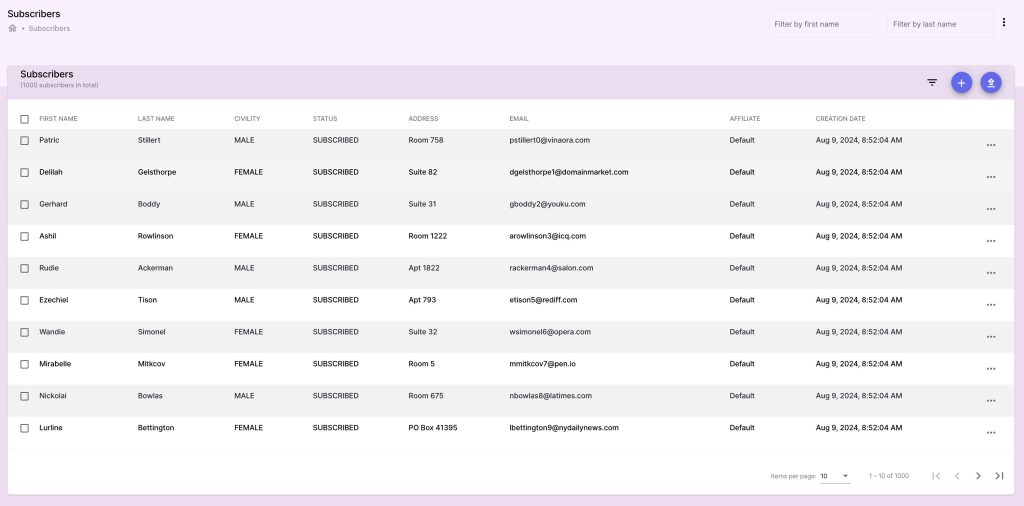
Capture d’écran 2024-10-07 à 23.45.51

Actions: #

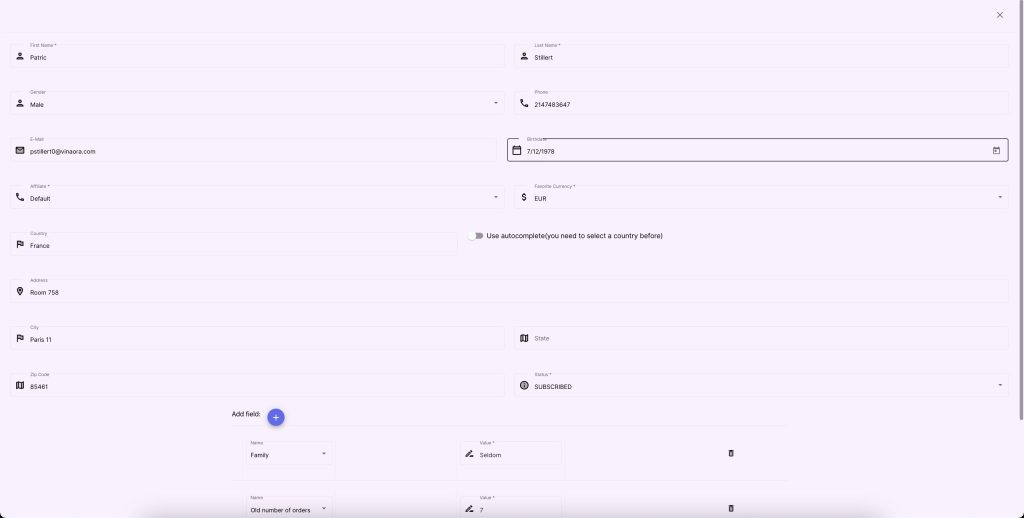
Adding a Subscriber: #

  1. Go to Subscribers Section:

    • Navigate to the Subscribers section in the main menu.
  2. Add a New Subscriber:

    • Click Add Subscriber.
    • Enter subscriber information including:
      • First Name, Last Name
      • Email Address
      • Physical Address: (autocompletion is enabled).
      • Phone Number
      • Birthdate
      • Affiliate: (you can keep the default value).
      • Favorite Currency
      • Any additional contact fields previously defined.
  3. Save Subscriber:

    • Click Save to add the new subscriber to the list.

Managing Subscribers: #

  1. Editing Subscriber Information:

    • Select the subscriber to modify.
    • Click Edit, make the changes, and click Save.
  2. Deleting a Subscriber:

    • Click the Delete button next to the subscriber and confirm the action.
    • Note: Deleting a subscriber will remove them from any segments or campaigns.

  #
Capture d’écran 2024-10-07 à 23.47.11

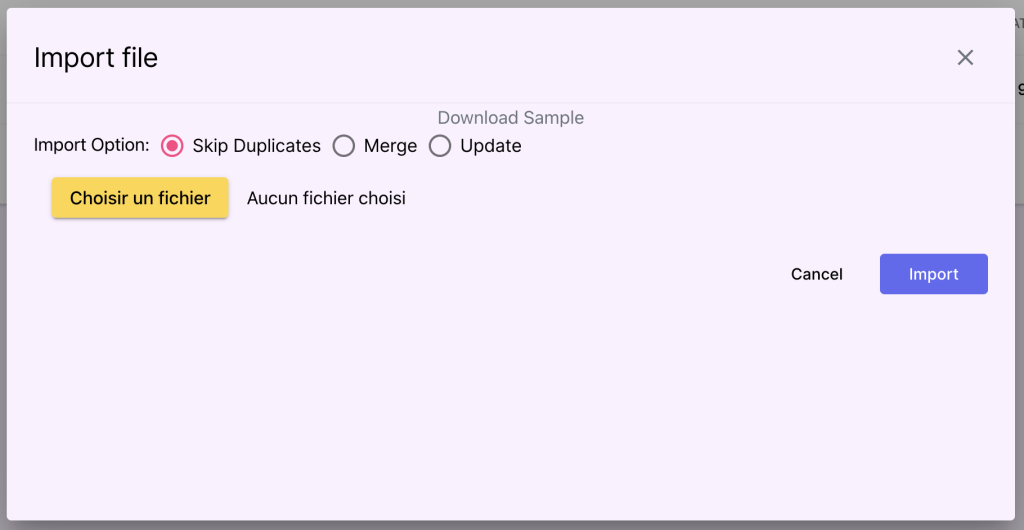
Upload Bulk Subscribers:

  1. Go to upload subscribers :

    • Download a sample file and fill it with your data
    • Select you saved file
    • choose the action to do if a subscriber already exists:
                              – Merge: if a subscriber attribute was null, fill it with the new value.  Else keep it unchanged.
                             – Update: apply the new value on all the subscriber attributes.
                             – Skip: skip subscriber if already exist.
Capture d’écran 2024-10-07 à 23.47.58

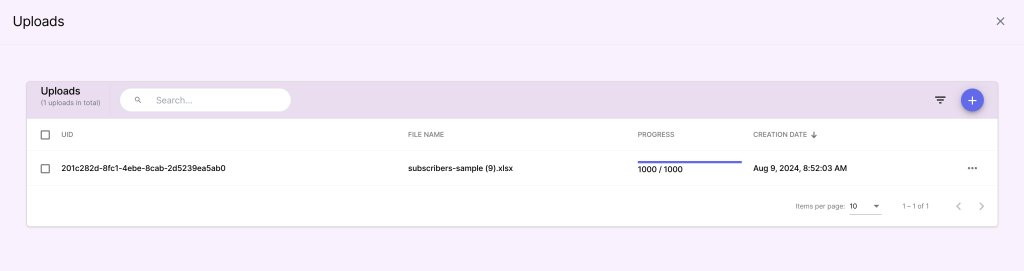
Show the progress of previous imports and download log
Capture d’écran 2024-10-07 à 23.47.44
What are your Feelings
Share This Article :
  • Facebook
  • Twitter
  • LinkedIn
  • Pinterest
Still stuck? How can we help?

How can we help?

Updated on October 7, 2024
AffiliatesSearch contact

Leave a Reply Cancel reply

Your email address will not be published. Required fields are marked *

Summary
  • Description:
  • Actions:
    • Adding a Subscriber:
    • Managing Subscribers:
  •  
mailorder-logo-lg


Our expert team is dedicated to supporting you with solutions that are both efficient and high-quality, designed to help you effortlessly manage your orders and provide top-notch service to your clients.


HomeFeaturesPricingFAQContact


© 2026 Website MailOrder by Capoffshore. All rights reserved.

Privacy Policy – Terms & Conditions

MailOrder
  • Home
  • Features
  • Pricing
  • FAQ
  • Contact
Free Trial