Description: #
The Orders section provides a centralized place to manage and process all customer orders within the mailOrder system. Users can filter orders by various criteria, perform key actions such as downloading invoices and SEPA files, and export orders for shipping and logistical purposes. This section is designed to streamline order management and ensure efficient handling of each step in the fulfillment process.
Note: #
An order is defined as all transactions made by the same subscriber, shipped to the same address, on the same day. A transaction occurs when a call center agent submits an order on behalf of the subscriber.
1. Viewing and Filtering the Order List: #
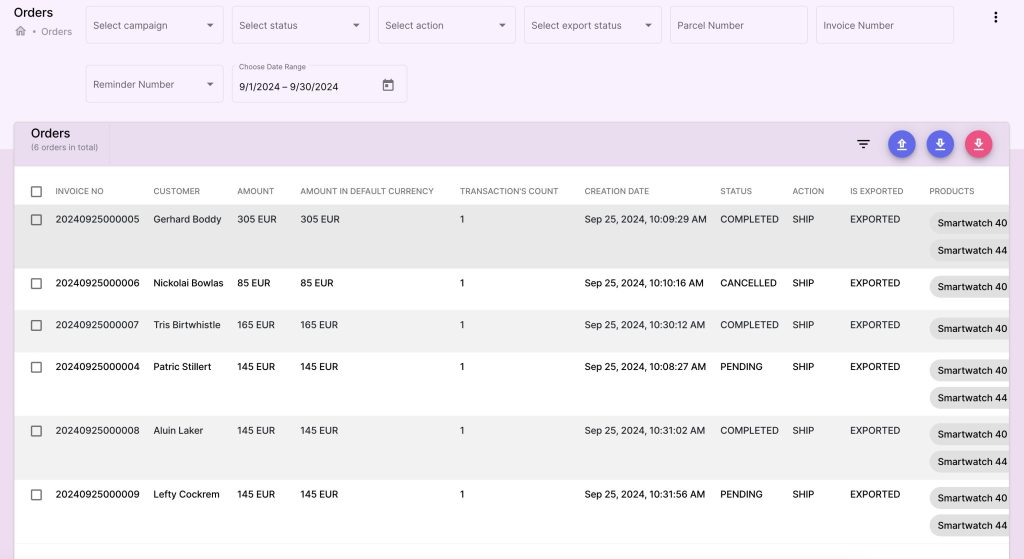
Upon accessing the Orders section, you will be presented with a list of all orders. To manage large volumes of orders efficiently, you can filter the list using the following criteria:
- Date: Filter orders based on their creation or completion date.
- Campaign: Filter by a campaign name
- Status: Filter orders by their current status (e.g., Pending, Shipped, Completed).
- Action: Filter by whether an order is ready to ship or still in a wait state.
- Export Status: Find orders that have already been exported or those that haven’t been processed for export yet.
- Parcel Number: Search for specific orders by their assigned parcel number.
- Invoice Number: Search for specific orders using their invoice number.
These filters allow you to focus on specific sets of orders, making it easier to manage shipping, invoicing, or returns.
2. Managing Individual Orders: #
For each order listed, the following actions are available:
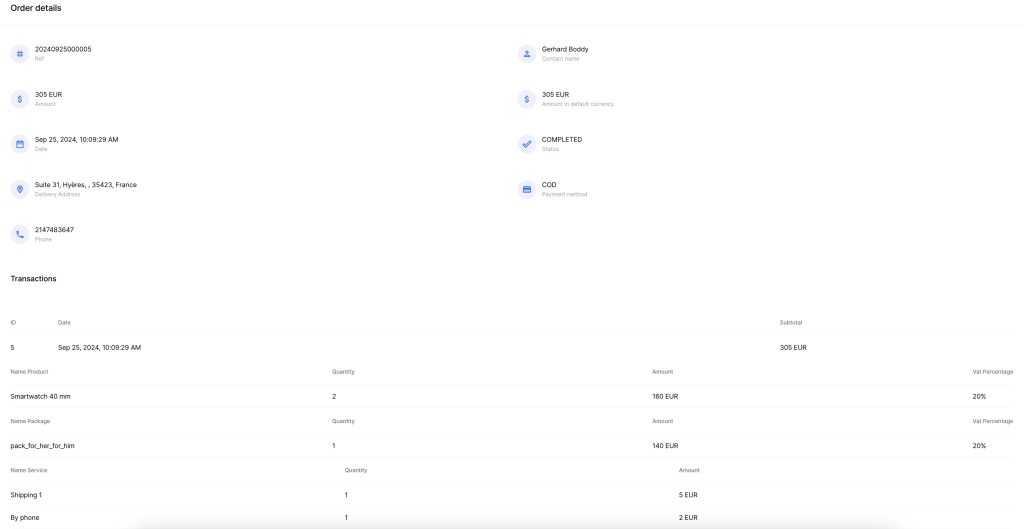
- Visualize the Order: Click on an order to view its full details, including the subscriber information, ordered items, pricing, shipping details, and more.
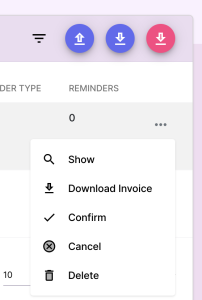
- Download the Invoice: Download a PDF of the invoice for the order, which can be used for record-keeping or sent to the customer.
- Download SEPA File (if enabled): If SEPA (Single Euro Payments Area) payment processing is enabled, you can download the SEPA file for the order, which contains the necessary information for processing direct debit payments.
- Cancel or Complete the Order: You can cancel an order if it has not been processed yet, or mark it as complete once the order is fulfilled. Canceled orders will no longer be processed for shipping or invoicing.
- Return Order: For completed orders that have been returned by the customer, you can register the return in the system and initiate any necessary refunds or restocking actions.
- Delete Order: You can permanently delete an order from the system if it is no longer required.
3. Exporting Orders: #
In addition to managing individual orders, the Orders section allows you to export order data for external processing or shipping purposes.
- Export Filtered Orders as XLSX: Once you have filtered the orders by the desired criteria, you can export the entire list to an XLSX file. This can be used for reporting, analysis, or further processing.
- Export Non-Exported Orders for Shipment: Export orders that have not yet been processed for shipment to a CSV file. This export can include:
- All Invoices as PDF: A PDF of each order’s invoice will be generated for shipping and record-keeping.
- All SEPA Files as PDF: If SEPA payments are enabled, SEPA files for non-exported orders will be included in the export.
- Recap File: A summary file listing all purchased products across the exported orders, which is essential for logistics teams to prepare shipments and ensure all items are included.
4. Upload file: #
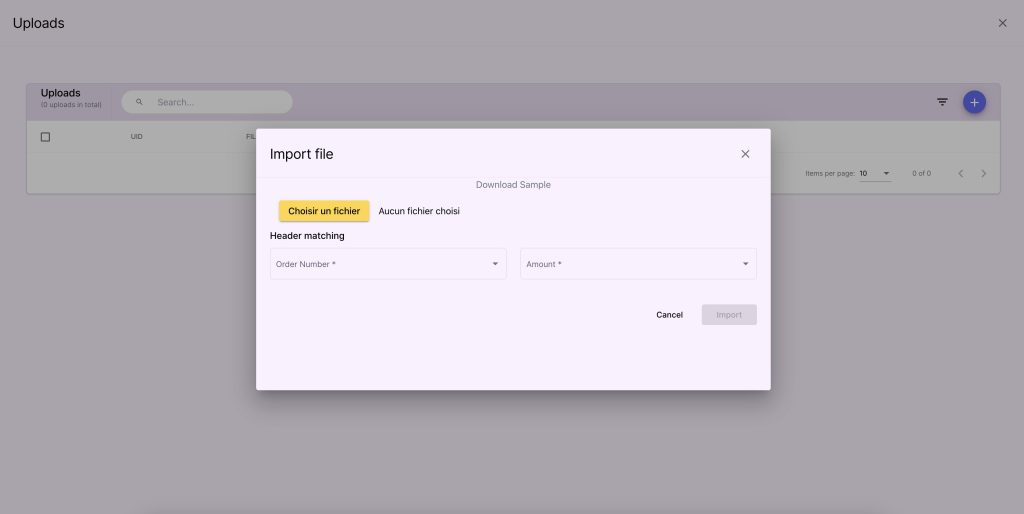
You can also upload a file to bulk update the statuses of orders. for this you need to select your XSLX file and do the matching of headers.
A report is going to be generated to show the updated orders and the not found orders.
Benefits: #
- Efficient Order Management: Use filters to focus on specific orders, whether by status, date, or export needs, making it easier to prioritize actions.
- Comprehensive Order Actions: Perform all necessary actions directly from the order list, from downloading invoices and SEPA files to completing or canceling orders.
- Streamlined Exports: Export all relevant data for shipment and logistics, ensuring that invoices, SEPA files, and recap summaries are organized and ready for fulfillment teams.


