Description: #
Orders can be created from the Search Subscriber section, either by associating the order with a campaign or by creating a spontaneous order for the subscriber. The order creation process involves filling out a form with subscriber details, selecting the desired products or packages, defining the logistics and payment methods, and finally reviewing the total cost before saving the order.
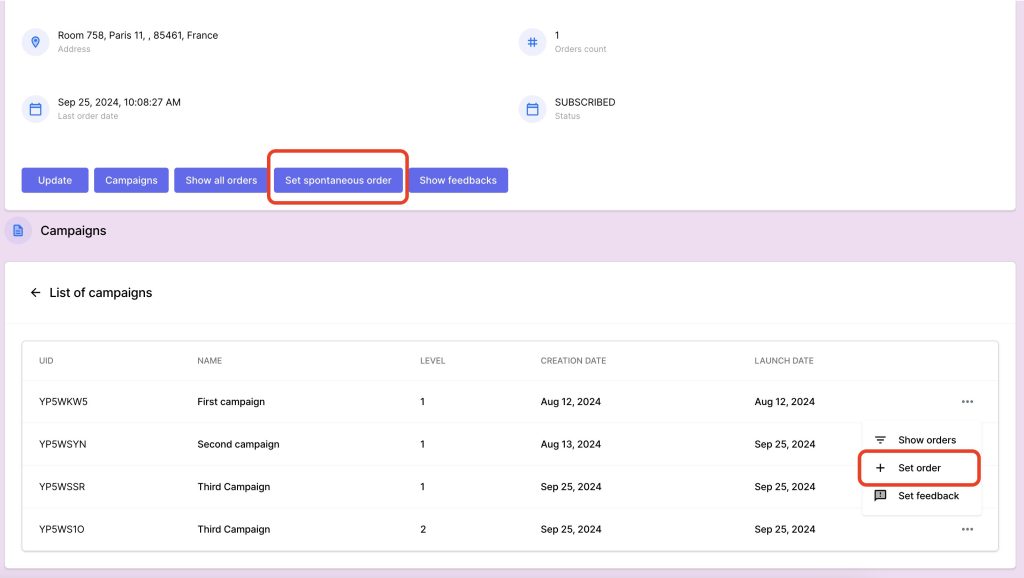
Steps to Create an Order: #
1. Selecting a Subscriber: #
- Filter and Choose a Subscriber:
- Navigate to the Search Subscriber section.
- Filter subscribers based on attributes or search by their UCI.
- Once you have located the desired subscriber, click on their profile to begin the order process.
2. Choosing a Campaign or Creating a Spontaneous Order: #
- Choose a Campaign:
- If the order is related to a campaign, select the campaign from the list of available campaigns. The products and packages available for this order will correspond to the media associated with the campaign.
- Spontaneous Order:
- If the order is spontaneous and not related to a campaign, proceed without selecting a campaign. You can manually choose products or packages that the subscriber wants to order.
3. Filling Out the Order Form: #
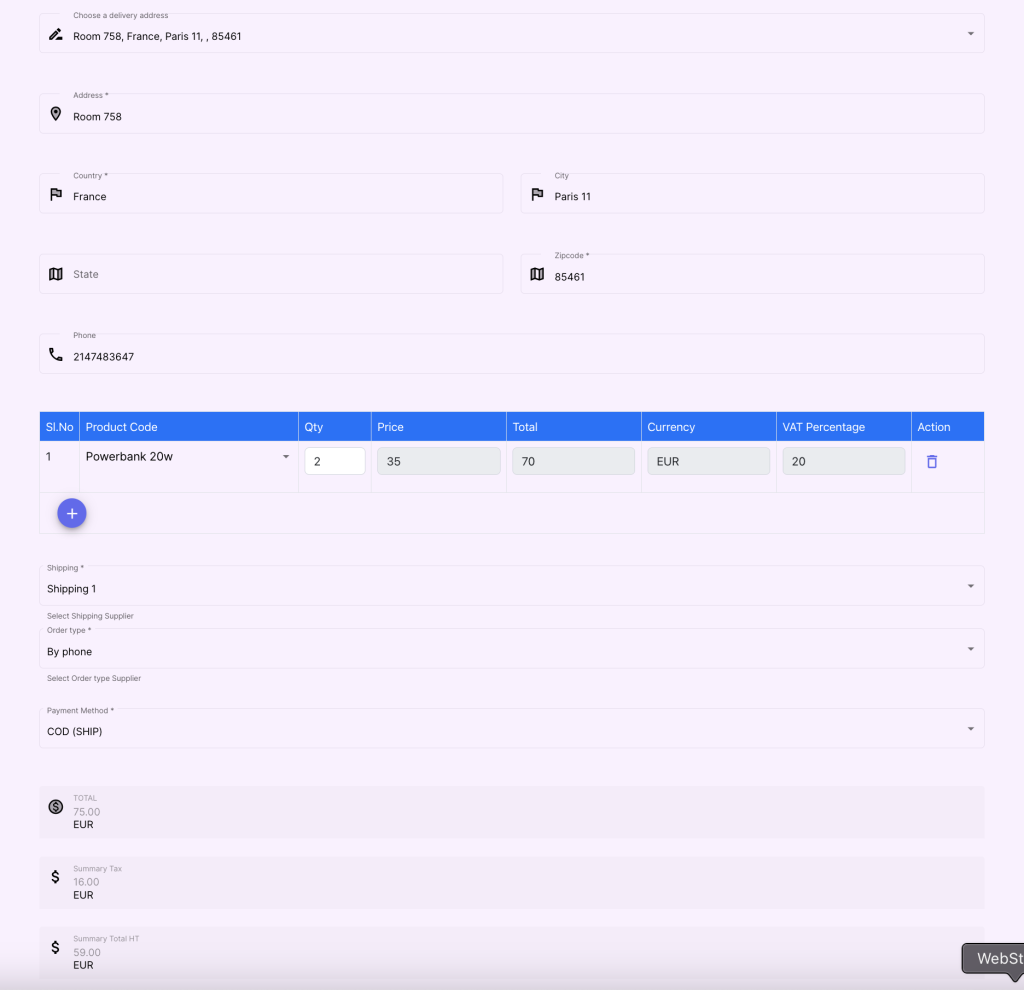
After choosing a subscriber and campaign, you will fill out a form to complete the order. This form consists of the following fields:
a. Address: #
- Choose a Previous Address:
- The subscriber’s past addresses will be displayed. You can select one of these addresses if it matches the delivery requirements.
- Create a New Address:
- If a new address is required, enter the subscriber’s delivery address, including street, city, state, postal code, and country.
b. Phone Number: #
- The subscriber’s phone number will automatically populate the phone number field. You can modify it if needed for this order.
c. Select Products or Packages: #
- Available Products and Packages:
- If the order is tied to a campaign, you will see a list of products and packages defined in the media associated with that campaign.
- Choose Products or Packages:
- Select the items the subscriber wants to order by clicking on them from the list. You can adjust quantities or remove items before finalizing the selection.
d. Logistic Service Suppliers: #
- Select Supplier:
- Choose the appropriate logistic service provider from the list of suppliers. The available options will depend on the delivery services set up in the system (e.g., DHL, FedEx, UPS).
e. Payment Method: #
- Select Payment Method:
- Choose the payment method for this order, whether it is Credit Card, Bank Transfer, SEPA Direct Debit, or other available options.
4. Review the Total Cost: #
Order Total:
- After completing the selections, the system will calculate the total cost of the order. This includes the price of the selected products or packages, shipping costs, and any applicable taxes.
Review Details:
- Carefully review all the order details, including the items, delivery address, logistic supplier, and total amount to be paid.
5. Saving the Order: #
- Save the Order:
- Once all details are confirmed and the total is verified, click Save Order to finalize the process.
- The order will be created, and it will be available in the Orders section for further processing (shipment, invoicing, etc.).
Benefits: #
- Seamless Order Creation: The order creation process is integrated with subscriber information, campaigns, and available products or packages, ensuring a smooth and efficient experience.
- Flexibility: Users can easily choose from previous subscriber addresses or create new ones, select logistics providers, and offer multiple payment methods.
- Accurate Cost Calculation: The system automatically calculates the total cost, ensuring transparency for both the business and the customer.


