First thing you need to do after your first login to your account is to fill the necessary settings.
For that, you need to go to the settings menu and navigate through the tabs.
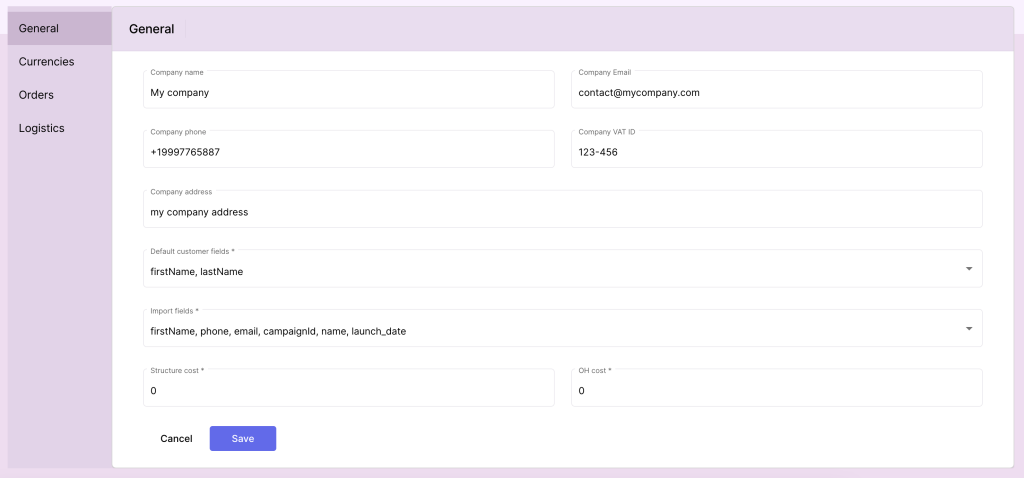
General (Company Information) #
Fill out the necessary details about your company. This information will be used throughout the application and may appear on orders, invoices, and other documents.
- Company Name: Enter the full legal name of your company.
- Email: Provide a valid company email address for communications.
- Phone: Include a contact number that customers or partners can reach.
- Address: Specify the company’s physical address, including street, city, state, and postal code.
- VAT ID: Enter the company’s VAT Identification Number, if applicable, for tax purposes.
- Default Customers fields: Choose the combination of customers fields that define a unique customer.
Currencies and Default Currency #
Set up the currencies your company deals with and select a default currency for transactions.
- Available Currencies: Add one or more currencies that your business accepts (e.g., USD, EUR).
- Default Currency: Choose the primary currency for the application. This currency will be used as the base for calculations and reporting.

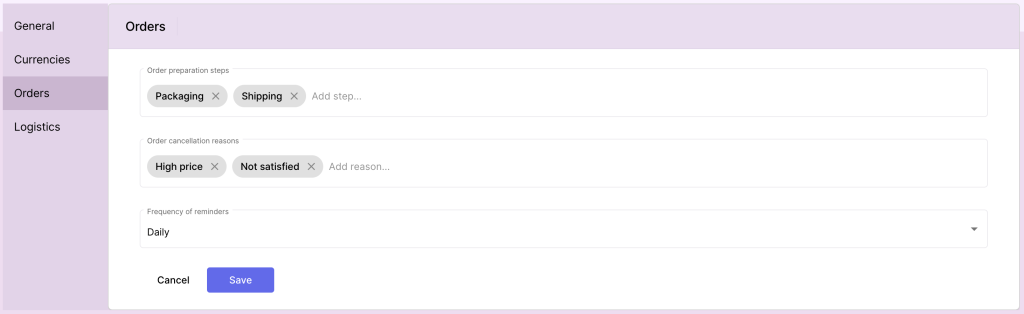
Orders Parameters #
Define the parameters that will guide how orders are processed, managed, and tracked in the application.
- Orders Preparation Steps: List the preparation steps that each order should go through before being marked as completed. For example:
- Step 1: Order Review
- Step 2: Item Picking
- Step 3: Quality Check
- Step 4: Packing
- Step 5: Shipping
- Orders Cancellation Reasons: Define standard reasons that users can select when canceling an order. Examples include:
- Customer Request
- Out of Stock
- Shipping Delay
- Incorrect Order Details
- Frequency of Reminders: Set the frequency for preparing order reminders to customers. Options include:
- Daily: Reminders are prepared every day at a specified time.
- Weekly: Reminders are prepared on a specified day of the week. If weekly is selected, define the day (e.g., Monday, Wednesday).
Logistic Parameters #
Configure logistics settings that will influence the handling and delivery of orders.
- Shipping Methods: Define available shipping methods (e.g., Standard, Express, Overnight).
- Default Warehouse Location: Specify the primary warehouse or distribution center for dispatch.
- Logistic Partner Information: Add details for any logistic partners or carriers (e.g., DHL, FedEx) including contact information and account numbers.
Saving and Finalizing Setup #
Once all fields are completed, click the Save button to finalize your initial setup. You can update these settings later in the Settings section of the application.


