Description: #
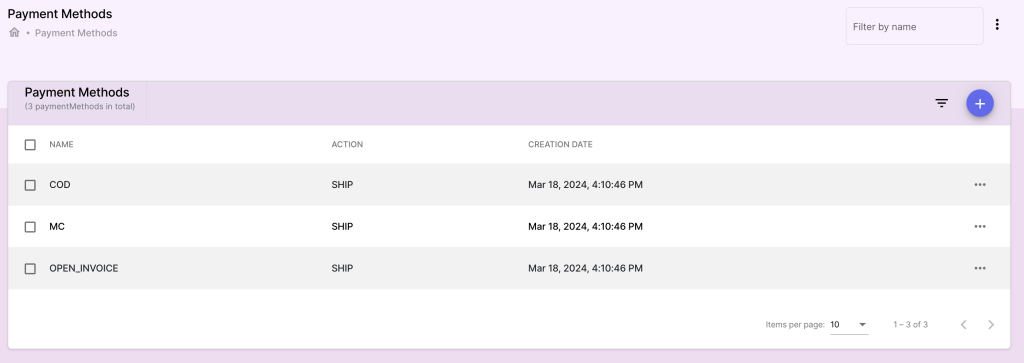
The Payment Methods section allows users to manage the various payment options available for processing orders. By default, the system comes with three predefined payment methods: COD (Cash on Delivery), MC (Mailing Cash), and OPEN_INVOICE. In addition to these, users can add new custom payment methods to suit their business needs.
Default Payment Methods: #
1. COD (Cash on Delivery): #
- Description: The subscriber pays for the order when the product is delivered. This payment method is ideal for customers who prefer to make payments in person rather than online or via mail.
- How It Works:
- The delivery agent collects the payment from the subscriber upon delivering the product.
- Once the payment is received, the order is marked as complete in the system.
2. MC (Mailing Cash): #
- Description: The subscriber sends the payment by mail. This method accommodates customers who prefer to send physical currency or checks via mail.
- How It Works:
- The subscriber mails the payment to the business.
- Once the payment is received and confirmed, the order is processed and shipped.
3. OPEN_INVOICE: #
- Description: With this method, the product is sent to the subscriber before the payment is received. The subscriber is expected to pay the invoice after receiving the product. Reminders are sent to the subscriber to prompt them to complete the payment, based on the reminder schedule defined in the campaign.
- How It Works:
- The product is shipped, and an invoice is sent to the subscriber.
- Reminders: If the subscriber fails to pay within the specified time frame, reminders are sent according to the schedule set in the campaign (e.g., weekly reminders).
- The order is marked as complete once the payment is received.
Adding Custom Payment Methods: #
Users can define additional payment methods to expand their payment options beyond the default ones.
1. Adding a New Payment Method: #
Access the Payment Methods Section:
- Navigate to the Payment Methods section in the main menu.
Click on Add Payment Method:
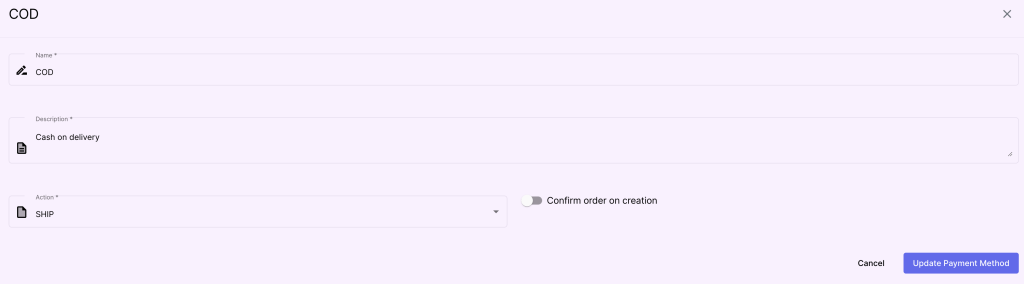
- Enter the Name of the new payment method
- Choose the action that follow the order (Wait/Ship).
- Check the option “Confirm order on creation” if this method allows the orders to get the status completed directly after creation.
Save the Payment Method:
- Once you have named the new payment method, click Save to add it to the list of available payment methods.
2. Managing Payment Methods: #
- Editing Payment Methods: You can modify the name or description of any custom payment method by selecting it and clicking Edit.
- Deleting Payment Methods: Remove any payment method that is no longer in use by clicking Delete. Note that default payment methods cannot be deleted.
Benefits: #
- Flexible Payment Options: Users can cater to different customer preferences by offering a wide range of payment methods.
- Automated Reminders for OPEN_INVOICE: The system handles reminders for unpaid invoices, reducing the manual effort needed to follow up with customers.
- Custom Payment Methods: The ability to add new payment methods provides flexibility for businesses to accommodate various payment solutions.