Description: #
The Logistic Services section allows users to define the logistic services that will be used for shipping and order fulfillment. Each service can be customized based on its type, such as whether it’s calculated by the number of subscribers, orders, or payments (client-side or company-side). Additionally, users can manage suppliers for each logistic service, including adding new suppliers with associated costs.
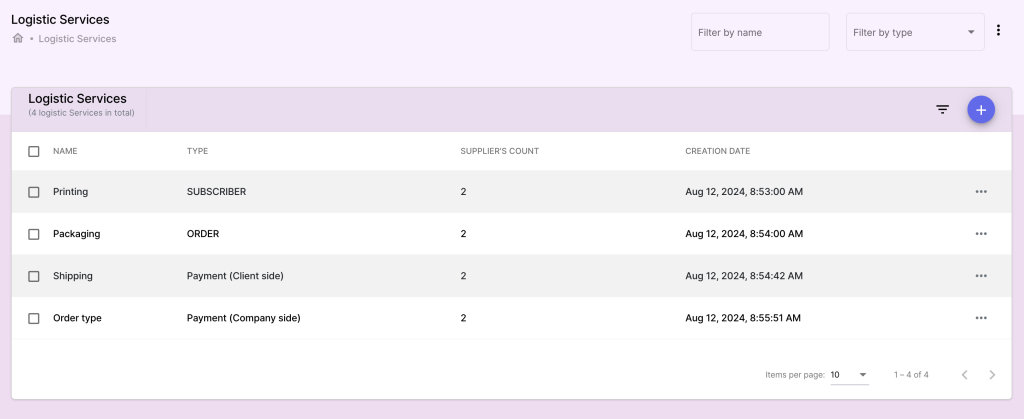
Steps to Define Logistic Services: #
1. Defining a New Logistic Service: #
Access the Logistic Services Section:
- Navigate to the Logistic Services section from the main menu.
Add a New Logistic Service:
- Click on Add Logistic Service to create a new service.
Enter Service Details:
- Name: Provide a descriptive name for the logistic service (e.g., Standard Shipping, Express Delivery).
- Type: Select the type of logistic service. This determines how the service is calculated and applied:
- By Subscribers: Charges are applied based on the number of subscribers.
- By Orders: Charges are applied per order.
- By Payment (Client-Side): Charges are applied based on the payment received from the client.
- By Payment (Company-Side): Charges are applied based on the payment made by the company to the logistics provider.
Save the Service:
- Once all fields are completed, click Save to create the logistic service. The service will now be available for use in order creation and management.

Managing Suppliers for Logistic Services: #
1. Viewing Suppliers for a Logistic Service: #
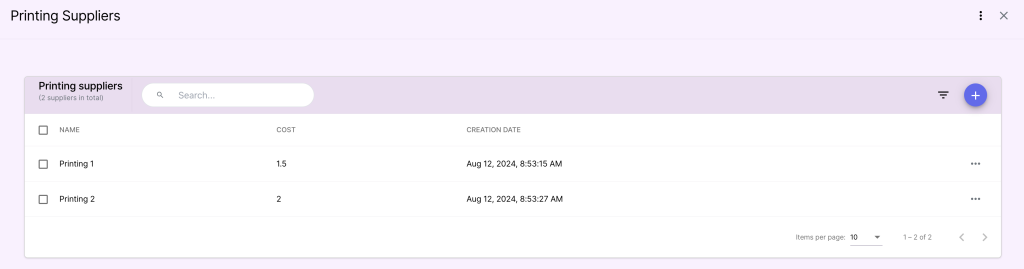
After defining a logistic service, you can view the list of suppliers that provide that service.
Access Suppliers:
- Select the logistic service for which you want to manage suppliers.
- Click on the Suppliers tab to view all suppliers associated with this logistic service.
Supplier Details:
- Each supplier will be listed along with their name and the cost associated with their service for the defined logistic service.
2. Adding a New Supplier: #
You can add new suppliers to any logistic service by providing their name and associated costs.
Click on Add Supplier:
- Within the selected logistic service, click Add Supplier.
Enter Supplier Information:
- Supplier Name: Provide the name of the supplier (e.g., DHL, FedEx, UPS).
- Cost: Enter the cost of using this supplier for the specific logistic service. This cost may vary depending on the service type (per order, per subscriber, etc.).
Save the Supplier:
- Once the details are entered, click Save to add the supplier to the list.
3. Editing or Deleting Suppliers: #
- Editing Suppliers: Click on a supplier to modify their name or cost, then save the changes.
- Deleting Suppliers: Select the supplier and click Delete to remove them from the logistic service.
Benefits: #
- Flexible Logistic Service Setup: Users can define a variety of logistic services based on how they want to calculate shipping costs (per order, subscriber, or payment type).
- Supplier Management: Easily manage and add multiple suppliers for each logistic service, ensuring that the business can negotiate and optimize shipping options.
- Cost Efficiency: By defining costs per supplier, businesses can track and control logistics expenses while ensuring efficient service delivery.


