Description: #
The Search Subscriber feature allows you to locate subscribers quickly by their attributes or Unique Campaign ID (UCI). This tool provides a list of matching results, making it easy to select the desired subscriber. Once selected, you can perform various actions such as updating subscriber information, reviewing their campaigns, managing orders, and setting feedback.
Actions: #
Finding a Subscriber by Attribute: #
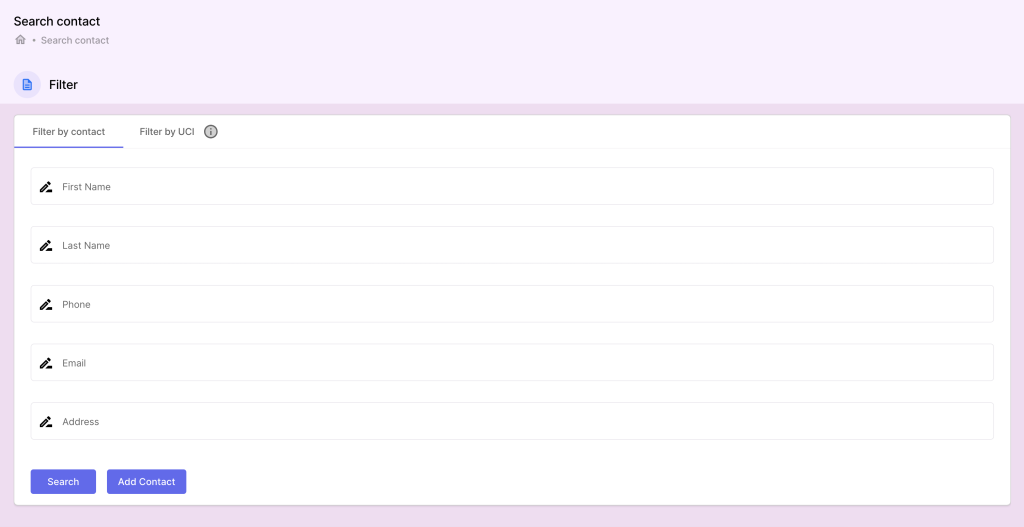
Access the Search Subscriber Section:
- Navigate to the Search Subscriber section in the main menu.
Enter Search Criteria:
- Use subscriber attributes such as Name, Address, Phone, or any custom fields you have set to locate specific subscribers. You can combine multiple criteria for a more precise search.
View the Matching Results:
- A list of subscribers matching the search criteria will be displayed.
- Click on a subscriber’s name to view their details or select a subscriber from the list to proceed.
Finding a Subscriber by UCI (Unique Campaign ID): #
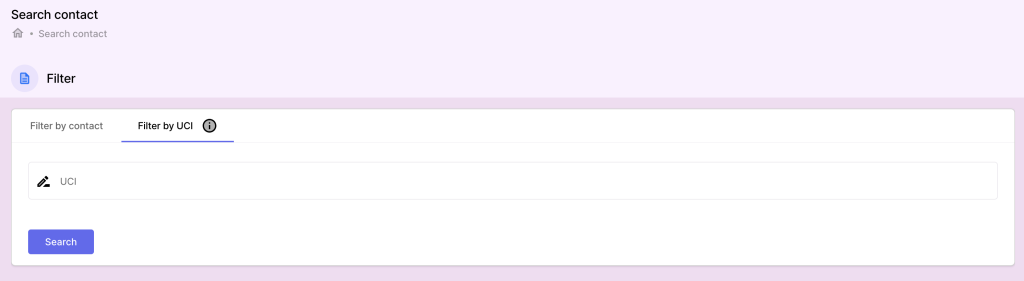
Search by UCI:
- You can also search for subscribers using their Unique Campaign ID (UCI). This identifier is tied to the subscriber’s participation in specific campaigns.
Select the Subscriber:
- After entering the UCI, the system will display the corresponding subscriber. You can then click on the subscriber’s profile for further actions.
Actions After Selecting a Subscriber: #
Update Subscriber Data:
- Once a subscriber is selected, you can view their full details, including contact information and custom fields.
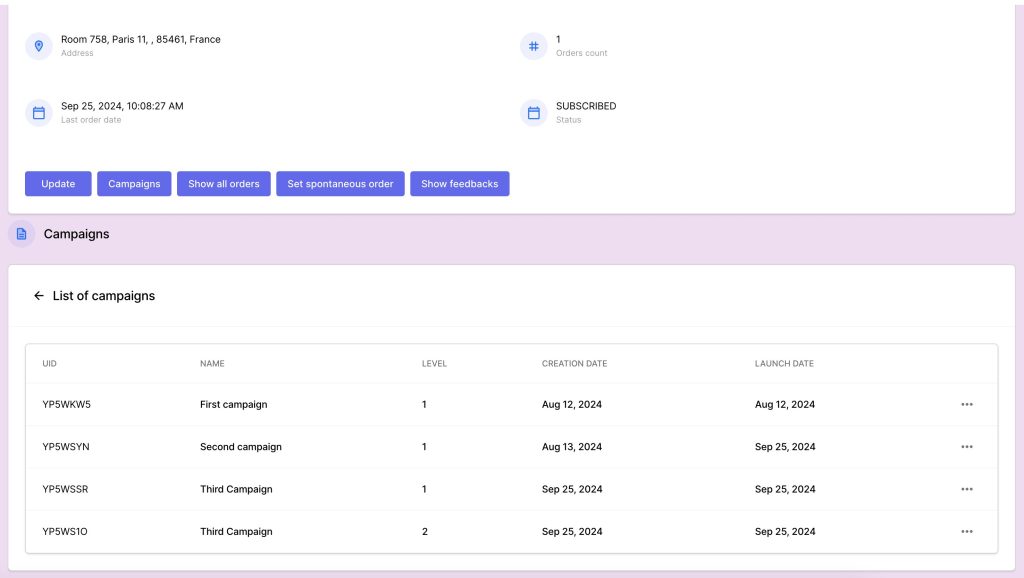
- Click UPDATE to modify and update the subscriber’s details (e.g., address, email, or phone number). Click Save to apply the changes.
View Campaigns:
- Navigate to the Campaigns tab within the subscriber’s profile to view all the campaigns they are currently associated with. This gives you insights into their activity and engagement with past and active campaigns.
- Create New Orders for this campaign: You can also create a new order for this campaign directly from this section by selecting products and packages, then assigning them to the subscriber.
View and Manage Orders:
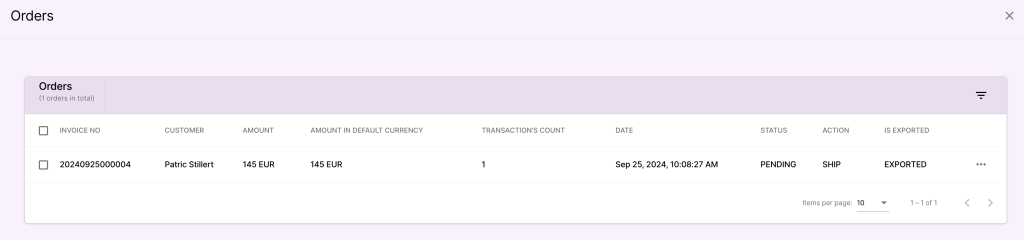
- Go to the Orders section under the subscriber’s profile to see a list of all their orders.
- You can review order statuses (e.g., pending, completed, canceled), and if necessary, modify or update existing orders.
- Create Spontaneous Orders: You can also create a new order for the subscriber, without being associated to a specific campaign.
Set Feedback:
- Click on the Feedback tab to add any new feedback or review past feedback provided by the subscriber.
- Enter details such as:
- Subscriber: Select the subscriber providing the feedback.
- Feedback Type: Choose the type (e.g., Unsubscribe, Return, Refund).
- Feedback Content: Enter the feedback details.
- Attachments: Upload the attachement files if there are any.
- Use the feedback to improve customer engagement or address any issues they might have raised.
Benefits: #
- Efficient Search: Quickly find subscribers by multiple attributes or their UCI, saving time when managing large subscriber lists.
- Comprehensive Subscriber View: After finding the subscriber, you can access all relevant data, including campaigns, orders, and feedback, in one place.
- Easy Data Management: Update subscriber information, manage orders, and set feedback with minimal effort, ensuring accurate records and better service.


